Stemi Uploader
Libraries
note
Disabled for now
Firmware
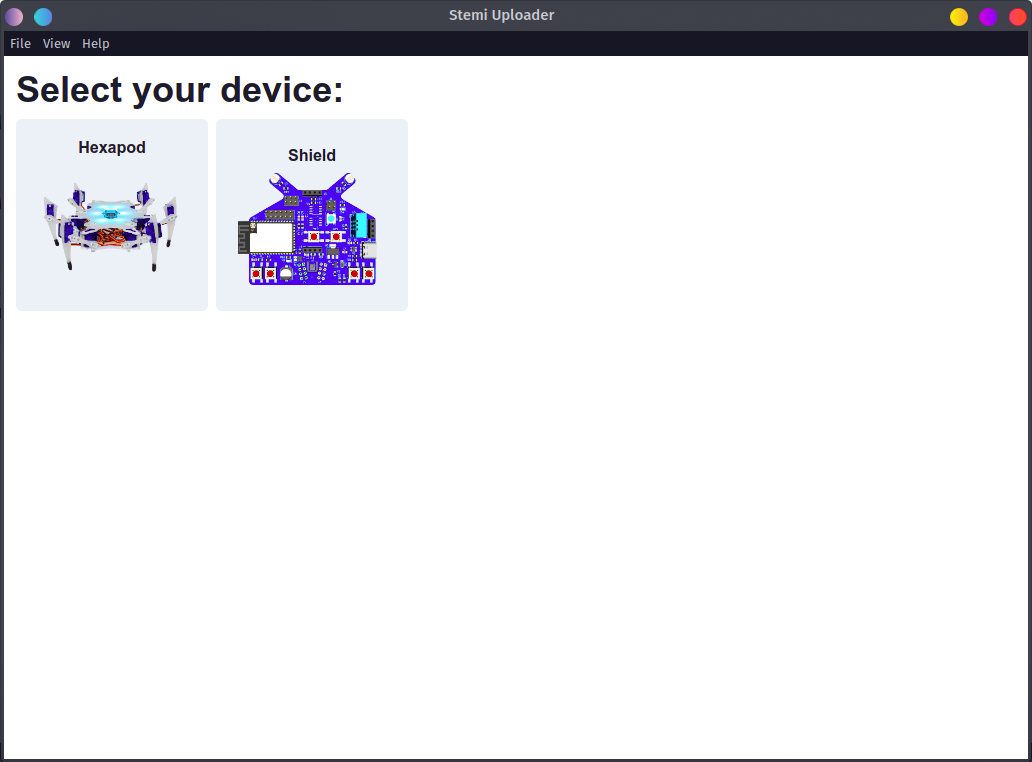
Open up desktop uploader, and select shield
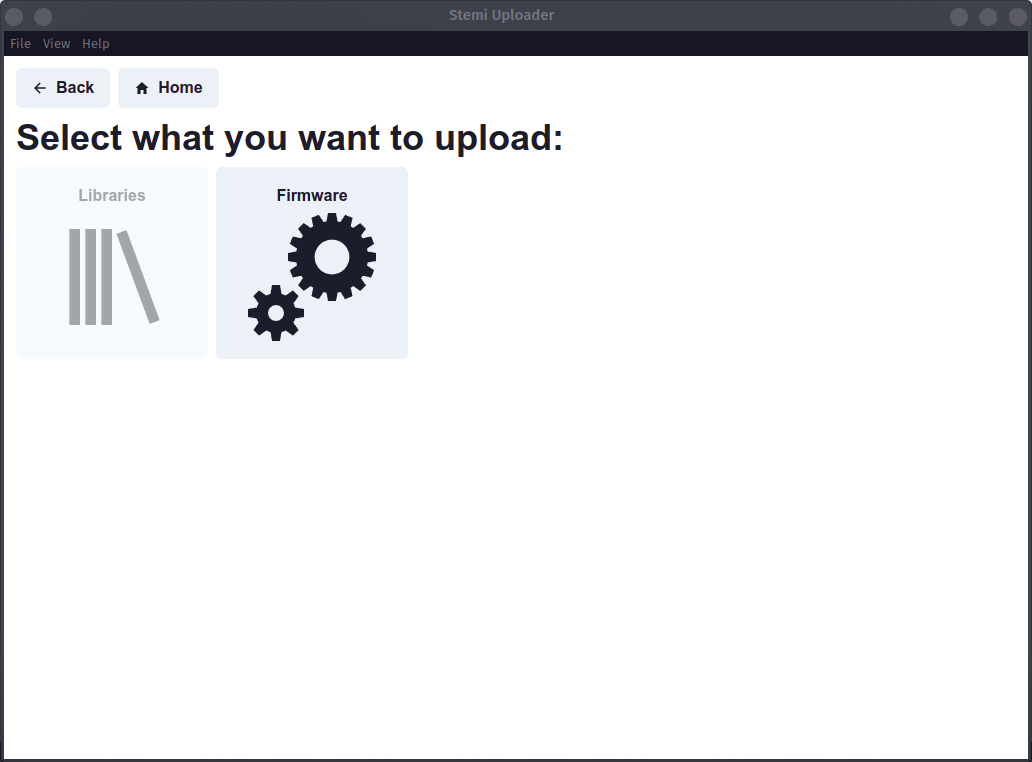
You will be presented with another choice. Select firmware. Connect your device with usb. Click refresh if no ports are available.
note
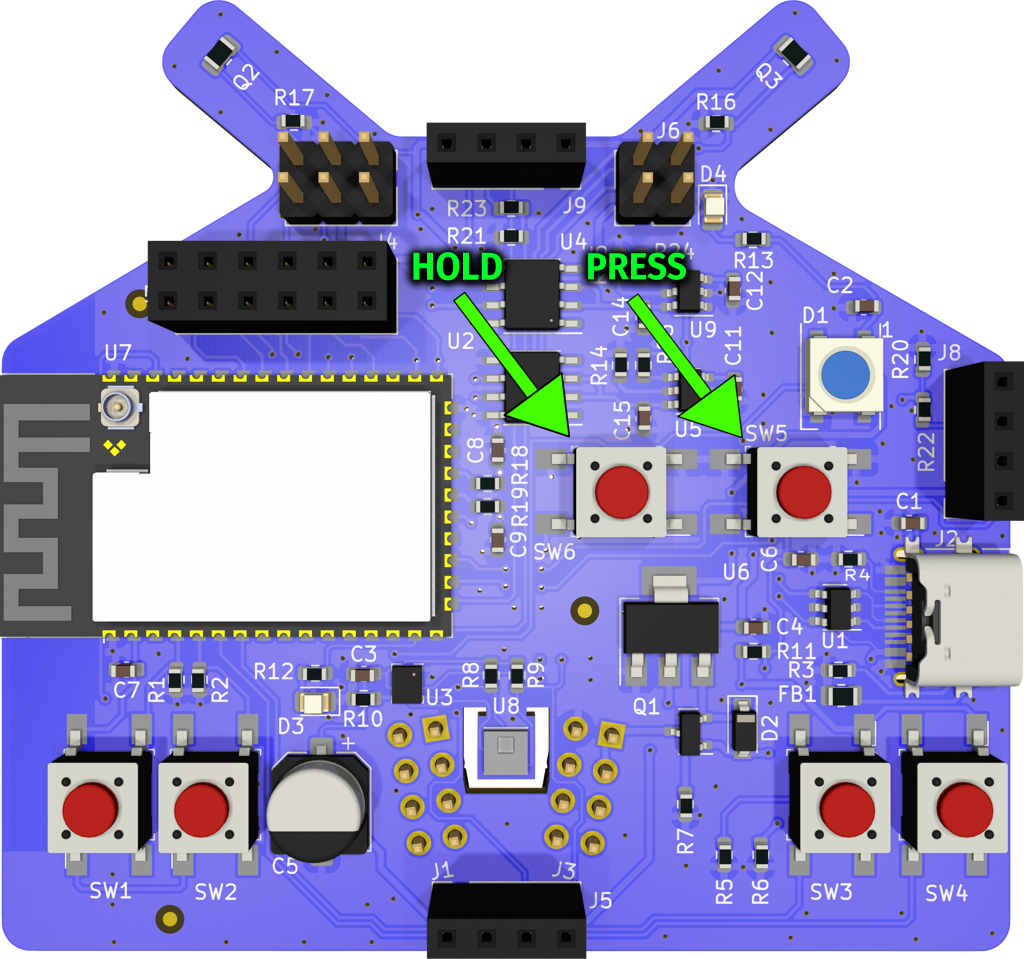
The device has a flashing mode. If you're not in the flashing mode, you will be presented with a screen like this.
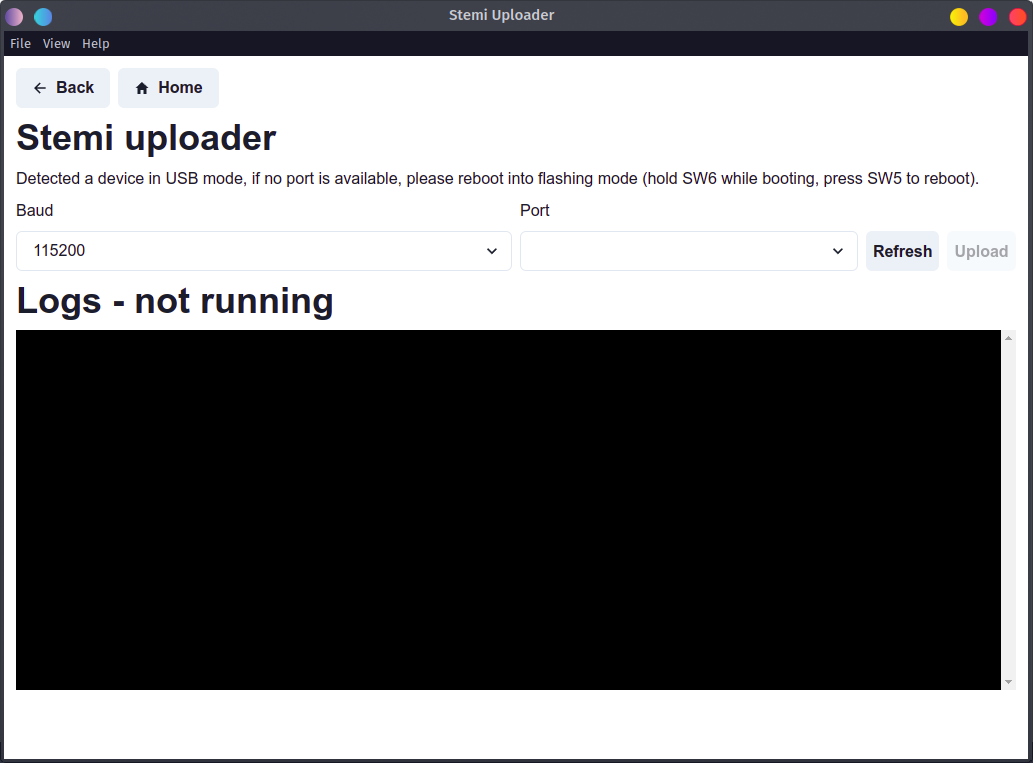
SW6 and SW5 buttons can be seen on the picture below. Refresh ports once again and the message should dissapear.
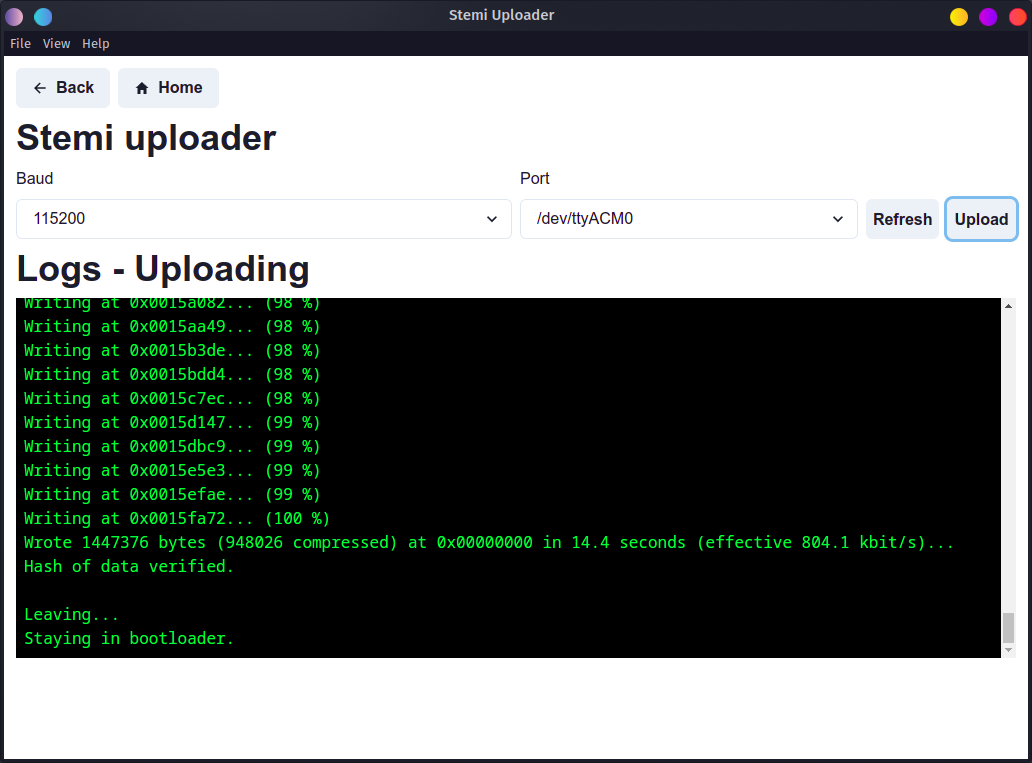
Finally you the upload button should be enabled and you can start uploading firmware to your device.
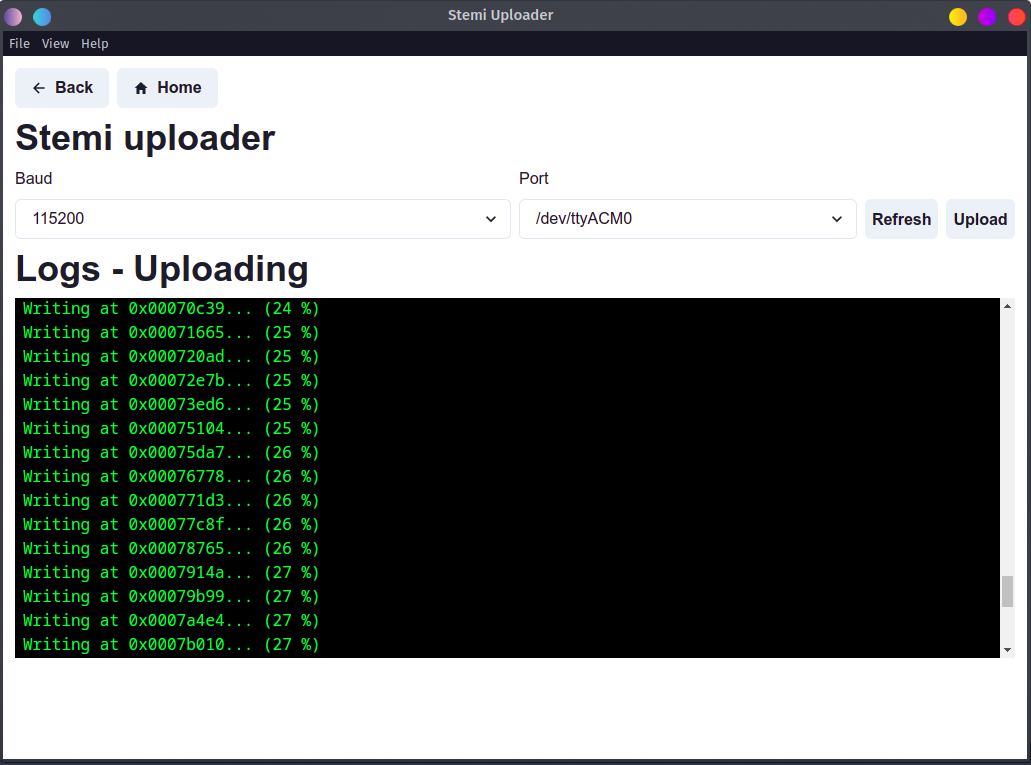
After the update the device will stay in flashing or bootloader mode. Press SW5 once again to reboot and exit flashing mode.